

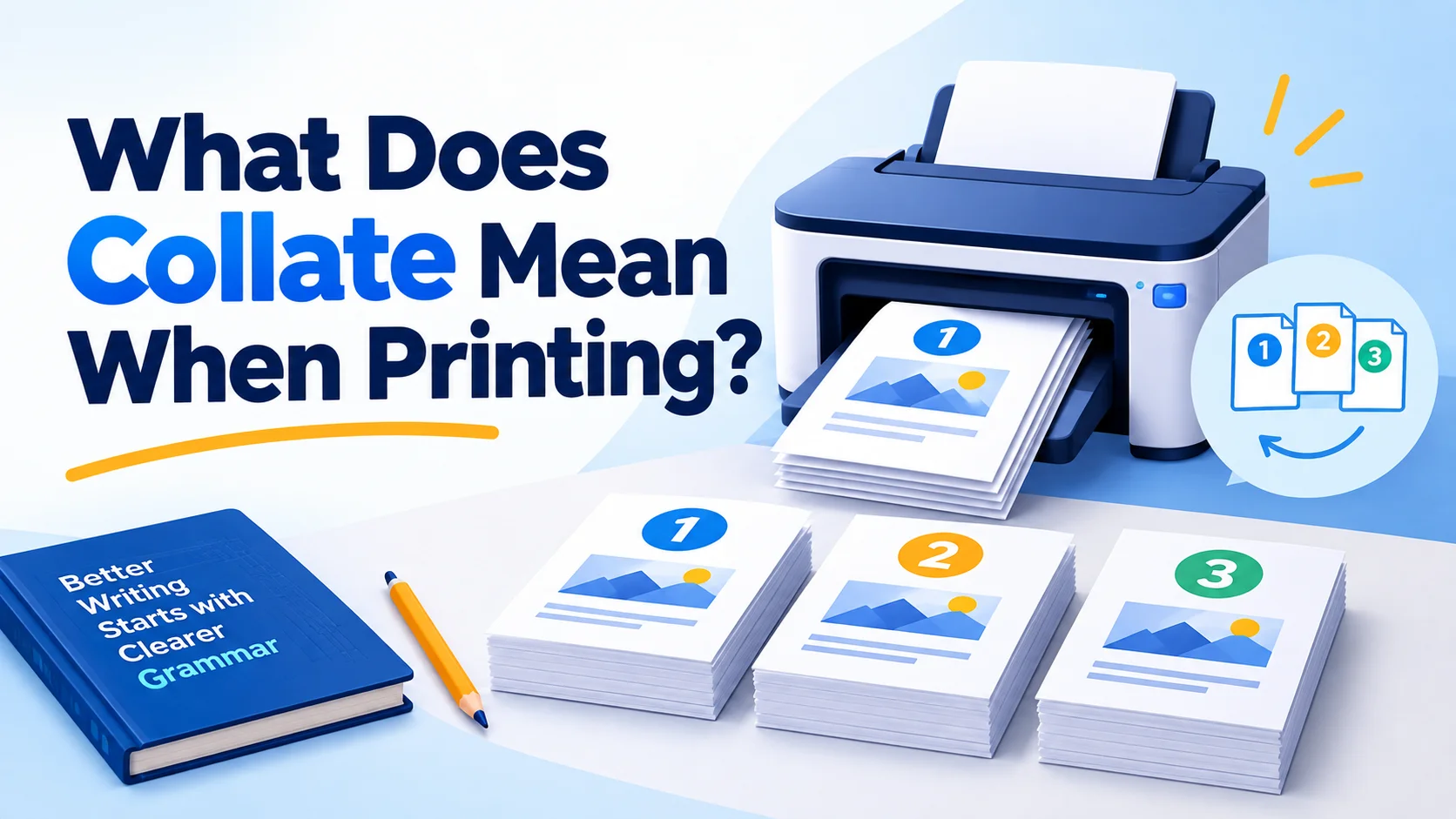
What does collate mean when printing? It means arranging multiple copies of a multi-page document into the correct page order so that each copy comes out as a complete set. For example, if you print three copies of a five-page report, collated printing produces 1-2-3-4-5, then another 1-2-3-4-5, and then another. Without collation, the printer may produce three copies of page 1, followed by three copies of page 2, and so on. The setting sounds simple, but understanding it can save considerable time when you’re printing reports, presentations, manuals, worksheets, forms, and other multi-page documents.
The important point is that collation controls how multiple copies are organized; it does not change the content of the document itself. It also does not automatically mean stapling, binding, folding, or printing double-sided. Those are separate functions that may work alongside collation. Printer manufacturers such as HP describe the setting as assembling each copy in the same order as the original, while Microsoft includes Collated and Uncollated as print-output choices in applications such as PowerPoint.
In this guide, you’ll learn what collate means, exactly how the setting works, when to turn it on or off, and how it interacts with duplex printing and finishing. You’ll also see practical examples, troubleshooting advice, and an explanation of how the word is used in commercial print production. Once you understand the difference between a complete document set and a stack of individual pages, choosing the right setting becomes much easier.
What Does “Collate” Mean When Printing?
In printing, collate means to arrange pages into complete, correctly ordered sets when producing multiple copies of a document.
Suppose your original document contains four pages and you need three copies.
With Collate turned on, the output is:
Copy 1: 1 → 2 → 3 → 4
Copy 2: 1 → 2 → 3 → 4
Copy 3: 1 → 2 → 3 → 4
With Collate turned off, the printer may produce:
1 → 1 → 1 → 2 → 2 → 2 → 3 → 3 → 3 → 4 → 4 → 4
The exact behavior can vary by printer, driver, application, and finishing equipment, but this distinction is the essential idea. HP’s printer documentation similarly describes collate-on output as sets in page order and collate-off output as pages grouped together.
A Simple Way to Remember It
Think of collate = complete copies.
If you’re handing a 10-page document to 20 people, you generally want 20 complete 10-page sets rather than one pile containing twenty copies of page 1, followed by twenty copies of page 2.
That is why the setting is particularly useful for documents that will be distributed immediately after printing.
How Does the Collate Setting Work?
The printer or print system has to decide how to sequence the pages as it produces multiple copies.
When you request several copies, the print system can generally organize the output in one of two ways:
- Collated: complete document sets are produced in sequence.
- Uncollated: identical page numbers are grouped together.
The setting is therefore about output organization, not about changing the document’s pagination.
What Happens When You Select “Collate”?
Imagine a six-page document and four copies.
A collated job is organized approximately like this:
1-2-3-4-5-6 | 1-2-3-4-5-6 | 1-2-3-4-5-6 | 1-2-3-4-5-6
The first six pages form one copy, the next six form another, and so forth.
This is particularly convenient when the printer has finishing features such as stapling. On supported equipment, collated sets can be assembled in the correct order before they leave the output tray.
What Happens When You Turn Collation Off?
The output is grouped by page:
1-1-1-1 | 2-2-2-2 | 3-3-3-3 | 4-4-4-4 | 5-5-5-5 | 6-6-6-6
This arrangement can actually be useful. It isn’t simply a “wrong” setting.
For example, a print shop might need 100 copies of a particular page for one process and 100 copies of another page for a separate process. In that situation, grouped pages may be more convenient than complete sets.
Collated vs. Uncollated Printing: What’s the Difference?
The choice depends on what you plan to do after the pages leave the printer.
| Feature | Collated Printing | Uncollated Printing |
| Output arrangement | Complete document sets | Same pages grouped together |
| Best for | Ready-to-distribute documents | Separate page processing |
| Manual sorting | Usually unnecessary | Often required |
| Example | 10 copies of a 12-page report | 10 copies of each individual page |
| Convenient for handouts | Yes | Usually not |
| Useful for page-specific processing | Sometimes | Often |
| Main purpose | Preserve copy order | Group identical pages |
When Collated Printing Makes Sense
Choose Collate when each printed copy needs to remain together.
Common examples include:
- Business reports
- Training manuals
- Class handouts
- Meeting packets
- Presentations
- Proposals
- Instruction sheets
- Multi-page forms
- Internal reports
- Reference documents
If you intend to pick up the printed stack and hand one complete copy to each person, collation is usually the convenient choice.
When Uncollated Printing Makes Sense
Uncollated printing can be useful when the pages have to be handled individually afterward.
For example, suppose you’re preparing a packet containing a cover sheet, a registration form, and several inserts. You may want certain pages grouped separately before assembling the final packets.
In that situation, automatically creating complete sets may work against your workflow.
Practical rule: Don’t ask, “Is collated printing better?” Ask, “Do I want complete sets or grouped pages?” Your answer determines the appropriate setting.
When Should You Use Collated Printing?
For most ordinary multi-copy documents, the answer is straightforward: use Collate when every recipient needs the same pages in the same sequence.
Printing Reports and Business Documents
A report might contain a cover page, executive summary, data pages, recommendations, and an appendix. If you’re producing several copies for a meeting, collated output gives you complete reports rather than forcing someone to sort the pages afterward.
Printing Handouts
Teachers, trainers, and presenters often need multiple copies of a multi-page handout. Collation makes the printed output easier to distribute.
Printing Presentations
PowerPoint provides a specific setting for choosing between collated and uncollated printed copies. Microsoft explains that users can choose how multiple copies of slides are organized under the print settings.
Printing Manuals or Instructions
A multi-page instruction document is normally intended to remain in sequence. Collation therefore makes sense when printing several finished copies.
Printing Contracts or Proposals
When every recipient needs the entire document, a complete set is more practical than a stack that requires manual sorting.
When Is Uncollated Printing Better?
There are legitimate reasons to turn collation off.
Consider a 20-page document where you need 50 copies of each page for a production process. Producing 50 complete documents would force you to separate them again. Grouping identical pages can make subsequent handling easier.
Uncollated output can also be useful when:
- Pages are going to different recipients or departments.
- Individual pages require different finishing.
- You are preparing components for later assembly.
- A print workflow specifically requires page-by-page grouping.
- You intend to manually sort the material in a different sequence.
The best setting is therefore determined by the next step in the workflow, not by the number of pages alone.
How to Use the Collate Function When Printing
The exact location of the option varies between operating systems, applications, printer drivers, and models. Microsoft notes that available printer options can depend on the selected printer, while some printer features are only available when the device supports them.
A typical workflow looks like this:
- Open the document you want to print.
- Select File → Print.
- Enter the number of copies.
- Look for Collated, Collate, or Collate Copies.
- Select Collated if you want complete sets.
- Review the print preview and other settings.
- Print a small test quantity when the document is important or lengthy.
Microsoft’s current Word documentation recommends reviewing the print preview and selecting the number of copies and other print options before printing.
What If You Cannot Find the Collate Option?
Don’t assume your printer is defective.
The setting may be:
- Controlled by the application rather than the printer.
- Located under printer properties.
- Available only for certain print modes.
- Unsupported by the particular printer.
- Hidden because only one copy has been requested.
Some printer models explicitly do not offer collating as a feature. HP documentation, for example, notes that collating is not available on all models.
If the option is missing, check the printer driver’s settings or manufacturer’s documentation.
Common Printing Situations Explained
The easiest way to understand collation is to see how it behaves in real situations.
| Situation | Recommended Setting | Why |
| 5 copies of a 10-page report | Collated | Each copy comes out complete |
| 30 copies of a single-page flyer | Either | There is only one page to organize |
| 20 copies of a 5-page worksheet | Usually collated | Each worksheet remains together |
| 100 copies of each individual form page | Uncollated may help | Pages remain grouped by type |
| 10 copies of a presentation | Collated | Each presentation stays together |
| Pages going through separate finishing steps | Depends on workflow | Grouped pages may be easier to process |
Example: Three Copies of a Five-Page Report
With Collate enabled:
1-2-3-4-5 | 1-2-3-4-5 | 1-2-3-4-5
Without collation:
1-1-1 | 2-2-2 | 3-3-3 | 4-4-4 | 5-5-5
The first arrangement can be picked up and distributed immediately. The second requires sorting.
Does Collating Affect Printing Speed, Paper, or Cost?
Collation itself does not inherently change the number of pages required. If you print three copies of a five-page single-sided document, you still need 15 printed pages whether those pages are collated or uncollated.
The setting primarily changes how the pages are organized.
However, the actual workflow can affect total job time.
Does Collating Use More Paper?
No, not simply because collation is enabled. The same number of document pages are being printed.
Paper consumption changes when you alter other settings, such as:
- One-sided versus two-sided printing
- Pages per sheet
- Number of copies
- Page ranges
- Paper size and layout
Does Collating Use More Ink or Toner?
Not inherently. The amount of ink or toner is primarily related to what is printed, how many pages are printed, and the coverage on those pages.
Can Collation Save Time?
It can save manual sorting time.
For a 100-page document printed in 20 copies, manually assembling the copies could become tedious. If the printer can reliably collate the job, the output may be much closer to finished sets.
That’s an important distinction: collation can reduce handling work even though it doesn’t reduce the number of pages printed.
Collation vs. Sorting, Stapling, and Binding
These terms are related in print production, but they do not mean the same thing.
| Term | What It Does | Example |
| Collating | Arranges pages into ordered sets | 1-2-3, 1-2-3 |
| Sorting | Groups or organizes material | All page 1s together |
| Stapling | Physically fastens pages | Staples a report in the corner |
| Folding | Creases printed sheets | Folds a brochure |
| Binding | Permanently or semi-permanently joins pages | Creates a bound manual |
A printer can therefore collate without stapling.
Likewise, a document can be collated first and then stapled as part of the finishing process.
Xerox’s printing terminology describes finishing as post-print processing that can include operations such as stapling, folding, hole punching, and collating.
Key distinction: Collation determines which pages belong together and in what sequence. Binding determines how those pages are physically held together.
How Collation Works With Double-Sided Printing
Collation and duplex printing are separate settings, but they can be used together.
Duplex printing means printing on both sides of a sheet. Collation determines how multiple copies are organized.
For example, you could print a six-page document:
- Double-sided
- Three copies
- Collated
The result should be three complete six-page documents, with the appropriate pages printed on the front and back of each sheet.
The exact physical orientation depends on settings such as long-edge or short-edge binding and the printer’s duplex mechanism.
Microsoft’s Word printing guidance identifies two-sided printing as a separate print option from the number of copies and other settings.
A Common Duplex Mistake
A document can be correctly collated but still appear wrong if the duplex orientation is incorrect.
For example, pages may be upside down on the reverse side because the wrong page-flip orientation was selected.
If you’re printing a long document double-sided for professional use, test one copy before sending the entire job.
What Does Collation Mean in Commercial Printing?
The word collation has a broader meaning in professional print production.
Instead of simply referring to a checkbox in a printer dialog, commercial collation can involve gathering printed sheets, sections, or signatures into the correct sequence for finishing and binding.
This matters especially for books, magazines, manuals, catalogs, and booklets.
A commercial production line may print large sheets containing multiple pages. Those sheets may then be folded, gathered, and assembled into the correct sequence.
Collation in Book Production
Books are not necessarily produced as individual pages emerging one at a time from an office printer.
Commercial printing can involve groups of pages known as signatures. These printed sheets are folded and assembled so that the pages appear in the correct order after folding.
Collation is one part of getting those sections into their intended sequence before subsequent finishing or binding operations.
That is a more specialized use of the term than the everyday printer setting, but the underlying principle is the same: put the components together in the correct order.
Why Accurate Commercial Collation Matters
An error in a commercial print run can affect hundreds or thousands of copies. A missing, duplicated, or incorrectly positioned section can make an otherwise well-printed publication unusable.
That is why professional production workflows use checks, equipment settings, and quality-control procedures to verify sequence and assembly.
Manual vs. Automatic Collation
Collation can happen automatically through printer or finishing equipment, or manually through human handling.
Manual Collation
Manual collation means people physically assemble pages into sets.
For example, if 100 copies of a five-page document were printed uncollated, someone could assemble:
Page 1 + Page 2 + Page 3 + Page 4 + Page 5
repeatedly until all 100 sets were complete.
Manual sorting is straightforward for small jobs but becomes increasingly labor-intensive as volume increases.
Automatic Collation
Automatic collation allows supported printing equipment or software to organize the output.
For example, HP describes supported devices as assembling copied pages into the correct order when the Collate option is enabled.
Automatic collation is particularly useful when:
- There are many copies.
- Documents have many pages.
- Sets need to be distributed immediately.
- The printer has finishing equipment.
- Manual sorting would introduce unnecessary handling.
The advantage isn’t that the printer somehow prints fewer pages. It is that the sorting work is incorporated into the print process.
Common Problems With Collated Printing
Even when the setting is correct, users sometimes get unexpected results.
The Printer Produces Uncollated Copies
First check whether:
- The correct printer is selected.
- The number of copies is greater than one.
- Collate is enabled in the application.
- The printer driver supports the feature.
- A conflicting printer setting is overriding the application.
Some devices support collation only in particular copy or finishing modes.
The Collate Option Is Grayed Out
This can happen when the selected printer or print mode does not support the feature. Microsoft notes that available printer options depend on the printer, and some printer-specific features require manufacturer support.
Pages Appear in the Wrong Order
Check whether the problem is actually collation.
If the pages are in the correct sequence but the back sides are upside down, the issue is likely duplex orientation.
If the document itself has incorrect page numbering or unusual section breaks, the print setting may not be the underlying cause.
Different Applications Produce Different Results
A print job can pass through several layers:
Application → operating system → printer driver → printer
Consequently, the available options and their names can vary.
For important jobs, rely on the actual print preview and a physical test rather than assuming every printer handles the setting identically.
Common Mistakes to Avoid
Assuming Collate Means Staple
It doesn’t.
Collation organizes pages; stapling attaches them. A printer may support both, but they are separate functions.
Selecting Collate Without Considering the Next Step
If a print shop needs all copies of a particular page grouped together, collated output may create extra work.
Always consider what happens after printing.
Printing a Large Job Without Testing It
For a 300-page manual or a large batch of reports, print one complete set first.
Check:
- Page sequence
- Orientation
- Margins
- Duplex alignment
- Paper type
- Finishing
- Completeness
Then run the full quantity.
Confusing Collation With Booklet Imposition
Booklet printing involves specialized page arrangement so that pages appear correctly after sheets are folded. That is not the same thing as simply choosing Collated for multiple copies.
This distinction becomes important when preparing professional publications.
A Practical Decision Guide: Should You Select Collate?
Use this simple decision process:
Are you printing more than one copy?
- No: Collation usually makes little practical difference.
- Yes: Continue.
Does each copy need to be a complete document?
- Yes: Select Collate.
- No: Continue.
Do you need identical pages grouped together for another process?
- Yes: Uncollated may be more appropriate.
- No: Collated output is generally more convenient.
Quick Checklist Before Printing
Before starting a large print job:
- Check the number of copies.
- Decide whether you need complete sets.
- Select Collated or Uncollated accordingly.
- Check single-sided or double-sided printing.
- Verify page orientation.
- Review the print preview.
- Test one copy if the job is important.
- Confirm finishing requirements such as stapling or binding separately.
This takes only a moment and can prevent a surprisingly large amount of manual sorting.
Conclusion
Understanding what collate means when printing comes down to one practical distinction: do you want complete document sets, or do you want identical pages grouped together? For reports, manuals, presentations, worksheets, and other documents intended for immediate distribution, collated printing usually saves the hassle of manually rebuilding each copy. Uncollated printing still has a place when pages need separate processing or later assembly.One final actionable tip: whenever a document matters, print one test copy before committing to a large run. Check the page sequence, duplex orientation, margins, and finishing rather than relying solely on the setting names.A common mistake to avoid is treating collation as if it means stapling or binding. It doesn’t. Collation organizes the pages; other finishing processes physically assemble them.
FAQs
Q1. What does collate mean when printing multiple copies?
Collate means arranging each copy’s pages in the correct sequence. If you print four copies of a six-page document, collated output normally produces four complete six-page sets rather than grouping all four copies of page 1, then page 2, and so forth. It is mainly an organization setting for multiple copies.
Q2. Should I choose collate when printing a report?
Usually, yes, if each person needs a complete report. Collated printing keeps every report together in page order, which reduces manual sorting. If the pages will be processed individually or assembled into a different structure afterward, uncollated output may better suit the workflow.
Q3. Does collate mean printing double-sided?
No. Collation and duplex printing are separate settings. Collation controls the order of multiple copies, while duplex printing controls whether both sides of a sheet are used. You can print a document collated on one side or both sides of the paper, depending on your printer and chosen settings.
Q4. Why would someone turn collate off?
Uncollated printing can be useful when identical pages need to remain grouped together. A production workflow might require separate stacks of a form’s individual pages before another assembly step. In that situation, automatically creating complete document sets could create additional sorting work.
Q5. Does collating reduce printing costs?
Not by itself. Collation normally changes the arrangement of printed pages rather than the number of pages produced. Your paper, ink, or toner consumption is determined primarily by the number of pages and how they are printed. Collation can, however, reduce manual handling time, especially for larger multi-copy jobs.